Mathpix

Mathpix is an AI-powered tool that uses Optical Character Recognition (OCR) to turn scanned PDFs and handwritten math into accessible digital formats like LaTeX, MathML, and plain text. It helps you to quickly create equations and scientific notation that are accessible and will work seamlessly across digital platforms. With Mathpix, you can also update older, inaccessible documents into editable, searchable, and screen-reader-friendly content—making your online learning materials more inclusive for all students.

Mathpix licenses are distributed by Interactive eLearning. To make a request, please complete a brief form to let us know your interest in using this tool, and you will be assigned a license within 24 hours. The subscription for our current license is valid only till June 17, 2026, at which time it will be considered for renewal. Claim your license soon and explore the magic of this powerful tool for making math and STEM content accessible!


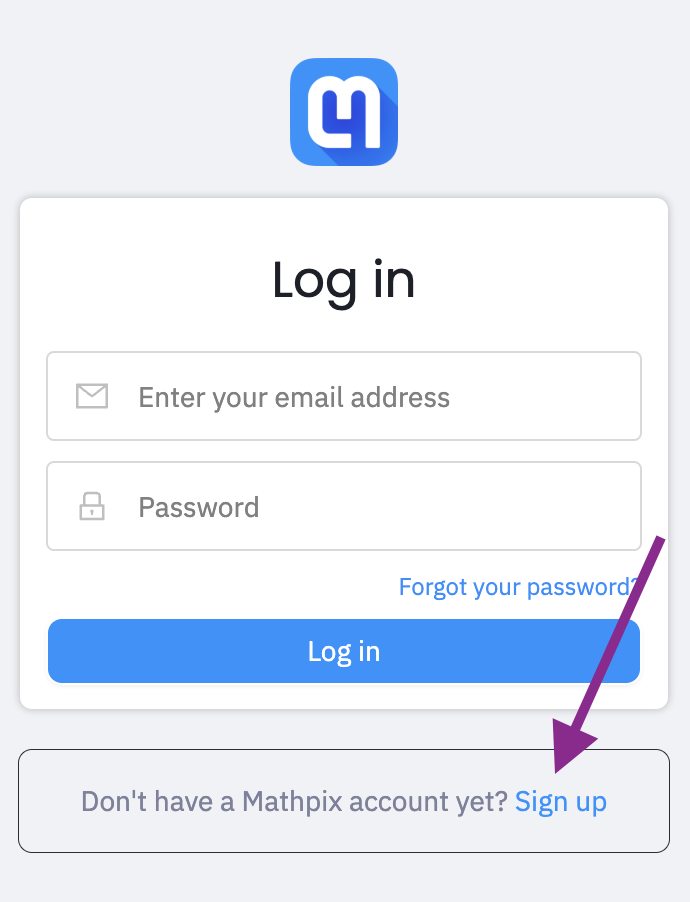
Mathpix login page with email, password fields, and 'Sign up' option highlighted in blue and a purple arrow.


Once you are assigned a license, you will receive an email from Mathpix with a link to verify your email. After you verify your email, you will be directed to the login page. If this is your first time using Mathpix, select the Sign up link as shown in the image.

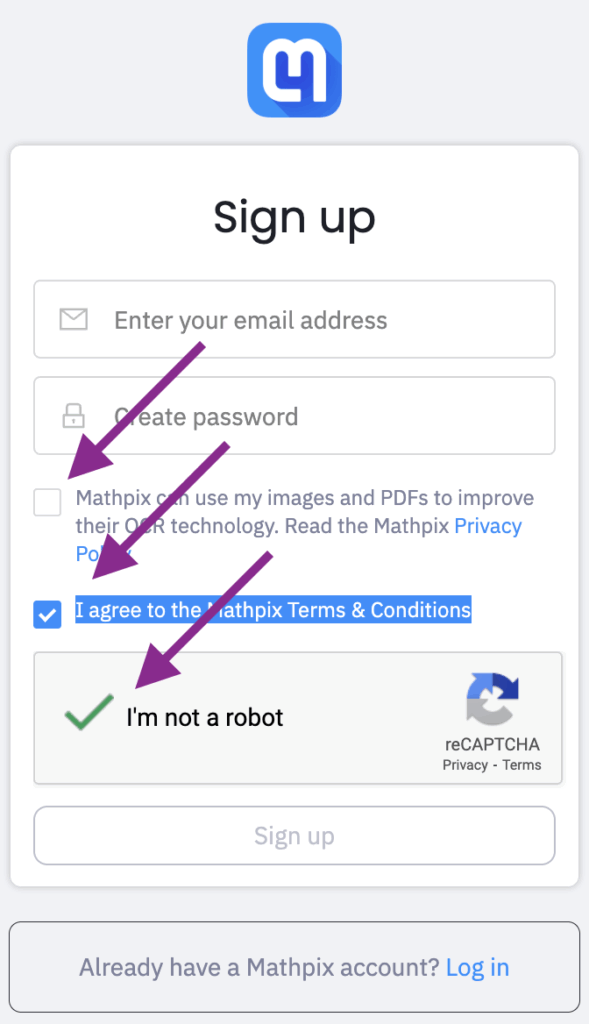
Mathpix sign-up page with email, password fields, with check box for privacy policy CAPTCHA verification, and terms agreement highlighted with a purple arrow.

When signing up, make sure to use your Bellevue College email address that was shared when requesting the license and create a strong password. Before selecting Sign up, make sure to UNCHECK the box next to “Mathpix can use my images and PDFs to improve their OCR technology. Read the Mathpix Privacy Policy” and CHECK the box next to “I agree to the Mathpix Terms & Conditions.” Finally, CHECK the box that says, “I’m not a robot,” and then select the Sign-up button.

What You Can Do With It 

Remediate Scanned PDFs

Follow These Steps

  1. From your Mathpix dashboard, select PDF from the left navigation.  
  2. Select the + icon at the top of the page.  
  3. Upload a PDF that you choose to remediate from your system.   
  4. Choose the eye icon to “Read MMD converted PDF,” where MMD is Mathpix Markdown (MMD). This will show you the digital document rendered by MMD.   
  5. Select the Export as icon to export the content rendered by MMD in various file formats.   
  6. I recommend downloading as a docx as this file format inserts math as MathML, and it is far easier to format and make the content more accessible in a Word document rather than a PDF.  
  7. Remember to use the Word formatting tools and check for accessibility in your downloaded document to ensure that the document is fully accessible  

Create Snips on Mathpix 

Follow These Steps

You can create a Snip by:

  • Uploading an image of any math/STEM content
  • Using the handwriting tool to write math/STEM content 
  • Uploading and image of the handwritten diagram or picture  
  • Uploading an image of the text

Generate LaTeX and MathML

To Generate LaTeX and MathML

To export the snip (image/picture) that has been converted to a digital format, select the Snipweb app or the Mathpix desktop app, select the snip that you uploaded and select the Export icon. Now you will have the option to download the image in several different formats including LaTeX and MathML. 

Extract LaTeX or MathML

Extract the LaTeX or MathML for Reuse

To extract the snip (image/picture) that has been converted to a digital format, select the Snipweb app or the Mathpix desktop app, select the snip that you uploaded and select the Export icon. Now you will have the option to download the image in several different formats.  

Based on the use case scenario you can use the:

  • Equation LaTeX if you choose to bring this content into Canvas Equation Editor
  • Copy the MathML for including it in the HTML editor in Canvas 
  • Copy the MathML MS Word if you want this content on a Word document

Help and Resources

Access resources for learning how to use Mathpix to make equations accessible to your students.

You can reach Mathpix support by sending an email to support@mathpix.com

Watch this tutorial video, Mathpix Snipping Tool Tutorial: Add Equations to Word, to explore the Mathpix snipping tool, a powerful tool for converting handwritten or typed math equations into LaTeX or MathML code.

This video, How to create accessible math using Mathpix Snip, walks users through the process of creating accessible math in Microsoft Word using MathPix Snip, a tool for capturing math and converting it into MathML, as well as integrating the MathType plugin to ensure compatibility with screen readers.

Discover how to convert PDF math problems into accessible Word documents with ease using Mathpix. This guide, MathPix Snip to Bulk Convert Math from a PDF to Word, walks you through each step, ensuring that you make math accessible for everyone, including those using assistive technologies.

icon of headset with microphone with a speech bubble in the middle

Need Assistance?

Just remember, if you need help, we’re here for you! Drop by Faculty Live Support (Zoom or in person) Monday–Friday from 11 AM to 3 PM, schedule a one-on-one accessibility coaching session, or email us anytime at elearning@bellevuecollege.edu.