Using Alternative Formats with Ally
The alternative formats generated by Ally depends on the source file and includes HTML, ePub, Electronic Braille, Audio, BeeLine Reader, OCR PDF and Tagged PDF.

The alternative formats generated by Ally depends on the source file and includes HTML, ePub, Electronic Braille, Audio, BeeLine Reader, OCR PDF and Tagged PDF.
These formats are automatically generated from your instructor’s original file/course content and are available to all students without requiring documented accommodations.
When you select a file (like a PDF, Word document, PowerPoint ) on Canvas, and or access a Canvas course content (Discussions, Announcement and Pages) created by your instructor, you’ll see the Ally Alternative Formats icon (icon image below) next to the name of the file or course content.
Select the Alternative Icon image to open a menu of formats you can download.
Locate the file in your course (PDF, Word, PowerPoint, etc.).
Click the Ally Alternative Formats icon next to the file name.
A pop up will appear with a list of available formats. Select your preferred format.
Select Download.
Your chosen file will download directly to your device.

Locate the file in your course (PDF, Word, PowerPoint, etc.).
Click the Ally Alternative Formats icon next to the file name.

A pop up will appear with a list of available formats. Select your preferred format.
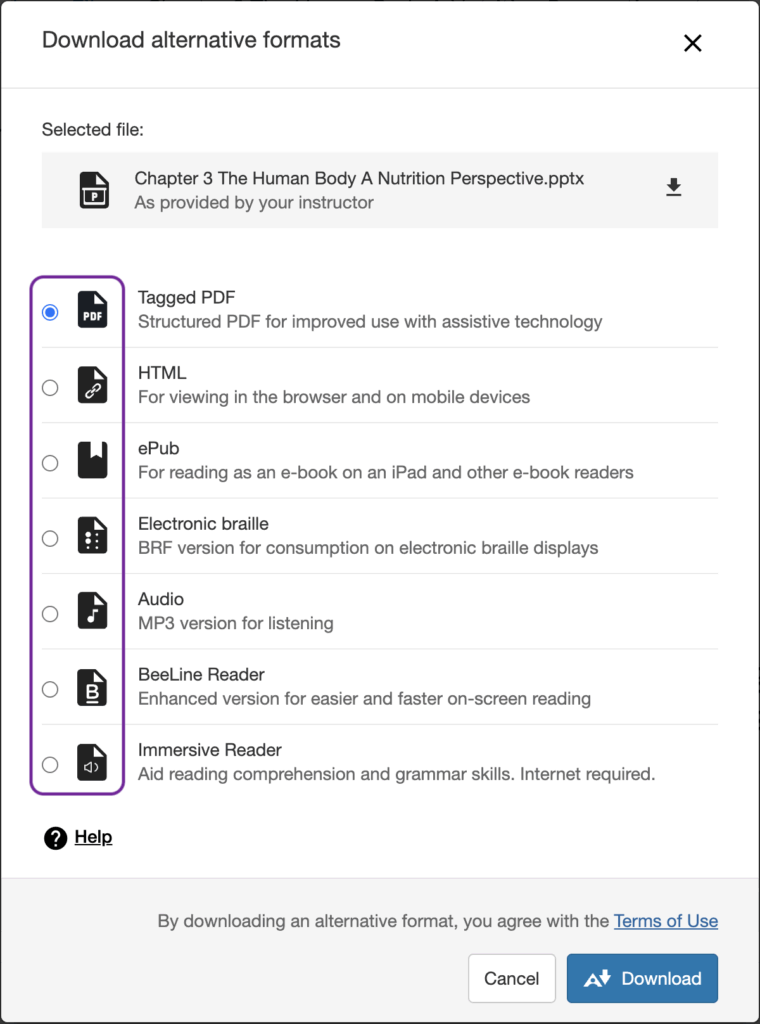
Select Download.
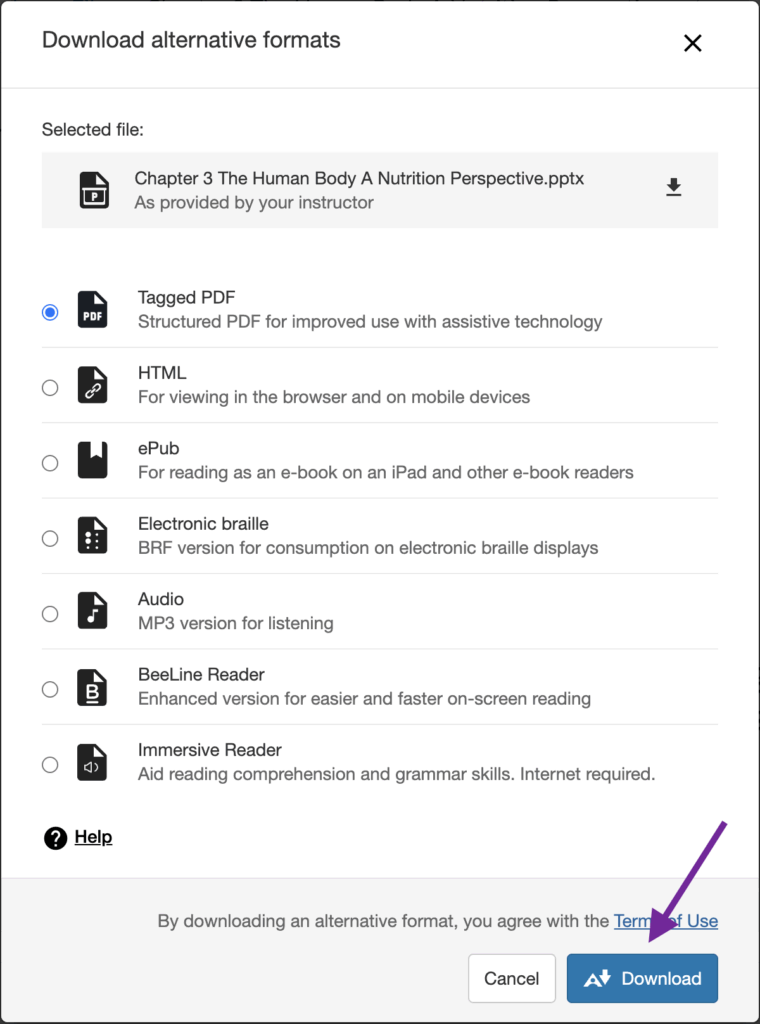
The exact formats may vary depending on the source file, but typically you may see:
Screen‑reader friendly, Includes headings and structure, Good for assistive technology users
Mobile‑friendly, opens in a browser, easy to enlarge text
Works with e‑readers and mobile reading apps, Adjustable fonts and colors, Ideal for offline reading
Converts text into a spoken audio file, Great for auditory learners, Useful for commuting or multitasking
Adds color gradients to text, Helps readers maintain focus and track lines, Supports faster reading
Converts scanned text into selectable, searchable text, Improves readability and accessibility
Clean, simple layout, Extremely compatible with screen readers
Use tagged PDFs if you rely on accessibility software like screen readers
Let your instructor know immediately about the issue.
No. They are separate downloads generated from the uploaded file.
No. Ally does not share individual student download data with instructors.
No—Alternative Formats are available to all students automatically.
If you have questions or need assistance with Ally, contact the Technology Service Desk.